
Welcome to XColorings! All our coloring pages are free to download and print. Whether you’re preparing a fun activity for kids, looking for classroom coloring sheets, or simply want to enjoy coloring at home, this guide will help you download and print your favorite pages.
How to Download a Coloring Page
You can save any coloring page to your device and print it whenever you like.
- Open the coloring page you want to use.
- Click the Download button below the image.
- The image will be saved to your device.
- Open the downloaded file whenever you’re ready to print or use it.
Our coloring pages are available as image files, which you can keep, share, or print again later.
How to Print a Coloring Page
Printing directly from a coloring page is easy:
- Open the coloring page you want to print.
- Click the Print button below the image.
- Select your printer in the print window.
- Choose your paper size and check the print preview.
- Click Print when everything looks right.
You can also download the image first and print it later using your computer’s image viewer or another printing application.
How to Print a Coloring Page in a Smaller Size
You don’t have to print a coloring page across the entire sheet of paper. If you want a smaller picture with more white space around it, you can adjust the print scale.
On most computers:
- Open the downloaded image or PDF file.
- Press Ctrl + P on Windows or Command + P on Mac to open the print window.
- Look for a setting called Scale, Custom Scale, or Size. The exact name depends on your browser, application, and printer.
- Reduce the scale to the size you want.
- Check the print preview before printing.
Here are a few examples:
- 100% – Prints at the original scale.
- 75% – Reduces the image to 75% of its original size.
- 50% – Makes the image half its original size.
- 25% – Creates a much smaller picture with plenty of space around it.
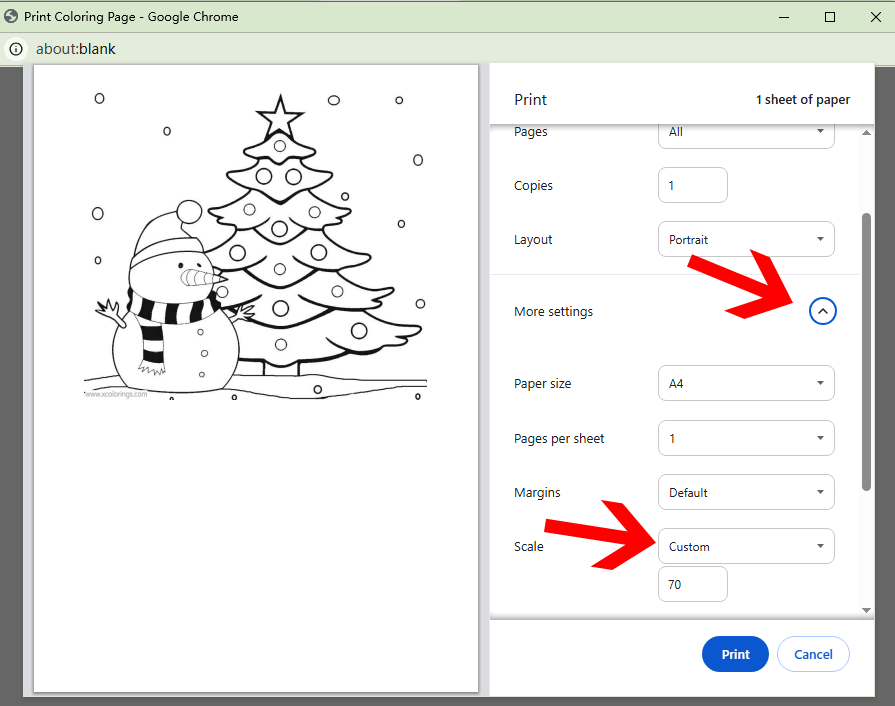
🔍Click image to view larger
These percentages describe the image’s scale, not necessarily the percentage of the paper it will fill. The final printed size also depends on the original image dimensions and the print settings.
If you don’t see a custom scale option, try opening the image in another application or downloading it and printing from your computer’s image viewer.
How to Print Multiple Coloring Pictures on One Sheet
Want to print several small coloring pictures on a single sheet of paper? You can arrange multiple images in a document before printing. This is a great way to save paper or prepare coloring activities for children and classrooms.
Method 1: Use Microsoft Word or Another Document Editor
- Download the coloring pictures you want to use.
- Open a blank document in Microsoft Word or another document editor.
- Select Insert → Pictures and add your downloaded images.
- Resize and move each picture to arrange them on the page.
- When you’re happy with the layout, print the document.
You can place two, four, or more coloring pictures on one sheet, depending on their sizes and how much space you want to leave for coloring.
Method 2: Create a PDF with Multiple Pictures
You can also use a document editor or page-layout application to arrange several coloring pictures on one or more pages. Once your layout is ready, save or export the document as a PDF.
Open the PDF whenever you’re ready to print. You can also choose Pages per Sheet in the print settings if you want to fit multiple PDF pages onto a single sheet of paper.
If you don’t have Microsoft Word, other document editors and page-layout applications can do the same job.
A4 or US Letter: Which Paper Size Should You Choose?
The two most common paper sizes are:
- US Letter: 8.5 × 11 inches (commonly used in the United States).
- A4: 210 × 297 mm (commonly used in many other countries).
Choose the paper size that matches the paper loaded in your printer. If the image looks too large or doesn’t fit properly, try selecting Fit to Page or Fit to Printable Area in the print settings.
Keep in mind that these options may slightly reduce the image to fit the available printing area. Always check the preview before printing.
How to Save a Coloring Page as a PDF
You can also save a coloring page as a PDF instead of printing it immediately. This is useful if you want to keep a copy, send it to someone, or print it later.
On most computers:
- Open the coloring page or its downloaded image.
- Press Ctrl + P on Windows or Command + P on Mac.
- In the printer or destination menu, select Save as PDF or Microsoft Print to PDF, depending on your device.
- Choose your paper size and check the preview.
- Click Save and select where you want to store the PDF.
You can open the saved PDF later and print it whenever you need it.
How to Print from a Phone or Tablet
You can print coloring pages from many smartphones and tablets if your device and printer support wireless printing.
On iPhone or iPad:
- Open the coloring page or downloaded image.
- Tap the Share icon.
- Select Print.
- Choose an available printer and adjust the print options.
- Tap Print.
On Android:
- Open the downloaded coloring page.
- Tap the menu or Share icon.
- Choose Print, if available.
- Select your printer and review the settings.
- Tap the print icon to start printing.
The exact steps may vary depending on your device, app, and printer. Make sure your phone or tablet and printer are connected to a compatible network when using wireless printing.
Troubleshooting Printing Problems
My coloring page is cut off.
Check that the selected paper size matches the paper in your printer. Try choosing Fit to Page or Fit to Printable Area, and make sure the image orientation is correct.
The picture prints too large.
Look for the scale or size setting in the print window and reduce it. You can try 75% or 50% and check the preview before printing.
The picture prints too small.
Check whether Fit to Page or another scaling option is reducing the image. Try a larger scale if your printer allows it.
The image looks blurry or pixelated.
Make sure you downloaded the original coloring page rather than a small thumbnail or preview image. Printing a larger image than its original resolution may also reduce sharpness.
The printer doesn’t respond.
Check that your printer is turned on, has paper and ink or toner, and is connected to your computer or wireless network. You can also try downloading the image first and printing it from another application.
Enjoy Coloring!
We hope these tips make it easier to download, print, and enjoy your favorite coloring pages. Choose the designs you love, adjust the size to suit your needs, and have fun coloring!